Connect WooCommerce
A WooCommerce store connects from “Stores”, in “Settings”, or from your WordPress admin with the Horizon Connector plugin. Both end in the same place: you approve Horizon’s access on your own store, and Horizon then reads your orders, products and stock through the official WooCommerce REST API.
Only the account owner or an administrator can connect, refresh or disconnect a store. Everyone else sees the store and its sync times, and the dialog says “Only the account owner or an administrator can connect a store.”
Connecting a WooCommerce store is not the same as being billed through WooCommerce. If you subscribed to Horizon on WooCommerce.com, see Billing through WooCommerce.
Connect from Horizon
- In “Stores”, open “Connect WooCommerce” and enter your store’s address.
- Choose “Connect to WooCommerce”. Your browser goes to your store, where you sign in to WordPress and approve access.
- You come back to “Stores”, which says “WooCommerce store connected.”
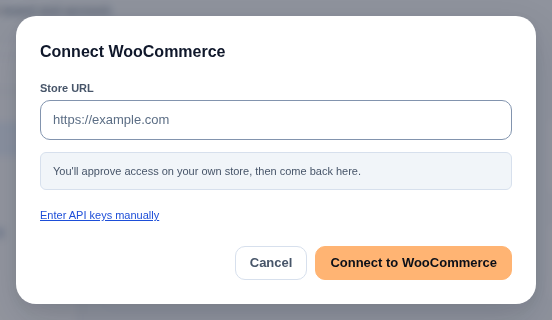
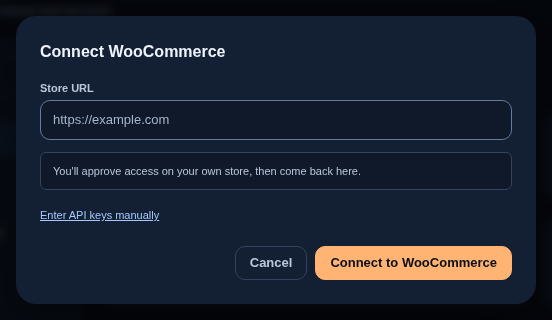
If you decline on your store, the dialog says the connection was not approved. You can try again or enter keys yourself.
Some hosts and security plugins block the approval page WooCommerce uses. If connecting cannot start, check that pretty permalinks are on and nothing blocks /wc-auth/ on your store, or choose “Enter API keys manually”: create a REST API key in WooCommerce with read and write access, and paste its “Consumer Key” and “Consumer Secret”.
Connect with the Horizon Connector plugin
The plugin connects a store from the WordPress side. It needs WordPress 6.5 or newer and an active WooCommerce.
- Install the plugin: upload the
horizon-connectorfolder to/wp-content/plugins/, or upload the zip in Plugins, Add New. Then activate it. - In WordPress, go to WooCommerce, then Horizon, and choose Connect to Horizon.
- Your browser opens Next Horizon at
/woo/pair. If you are not signed in, you sign in first and carry on from the same page. - You are sent back to your store to approve access, and return with the store connected.
The plugin only handles the connection. It reads and writes no orders, products or customer data itself, and there are no keys to copy. It keeps a secret on your server and sends Horizon only a one-way hash of it, so a code intercepted on the way cannot connect someone else’s account.
The plugin’s screen also has Check connection, to confirm Horizon still recognises the store, and Disconnect from Horizon.
What syncs
- Orders and customers. New and changed orders arrive as WooCommerce reports them. A check every 15 minutes also picks up any order change that was missed. On connecting, Horizon imports the store’s order history in the background: the store shows “Backfill pending” until it is done, then “Backfilled”.
- Products and variations. Each variation becomes its own product in Horizon.
- Stock levels, read with the products every 15 minutes. WooCommerce stays the source of truth for stock, products, refunds and coupons: Horizon does not write them back.
Each store row in “WooCommerce stores” shows when the last checks ran, under “Inventory reconcile:” and “Orders reconcile:”. “Refresh from WooCommerce” reads products and stock now, and “Import orders” imports orders now.
If some of WooCommerce’s order notifications could not be set up, the store shows “Sync incomplete”. The 15-minute checks still keep it in sync; reconnecting the store finishes the setup.
Marking orders complete
Horizon can write one thing back to WooCommerce: when you buy a label for a WooCommerce order, it sets the order to completed and adds the tracking number and carrier to the order.
- It is off for every store until it is switched on for that store. The store row has no switch for it.
- The tracking number is written in the fields the official WooCommerce Shipment Tracking extension uses. If your store uses Advanced Shipment Tracking instead, or neither, the tracking is saved on the order but your storefront may not show it.
- When the order is completed, WooCommerce sends your customer its own Completed order email. So for these orders Horizon’s “On its way” email stands down, and your customer gets one email, not two. See Notifications.
- Nothing is written while the store is paused or needs reconnecting, or for a cancelled order.
Pausing and badges
| What you see | What it means |
|---|---|
| “Sync on”, “Sync off” | Whether Horizon is reading the store. Deactivating the plugin in WordPress pauses the sync without disconnecting; reactivating it resumes, and the next check catches up |
| “Needs reconnect” | WooCommerce no longer accepts Horizon’s keys. Connect the store again |
| “Sync incomplete” | Some order notifications are not set up. Data still syncs on the 15-minute checks |
Disconnecting
“Disconnect” on the store row, then confirm. Or use Disconnect from Horizon on the plugin’s screen in WordPress. Either way:
- Horizon stops reading from and writing to the store, and marking orders complete turns off.
- Imported orders and stock stay in Horizon.
- The storefront slot is freed.
- Connecting the same store to the same account later picks up where it stopped, with no duplicates. Orders placed while it was disconnected are imported then without triggering automation rules. See Automation rules.
Deleting the plugin in WordPress also disconnects the store.
Support: write to support@horizonlogistics.eu.