Connect PrestaShop
Horizon connects to PrestaShop through the shop’s Webservice, the API built into every PrestaShop. There are two ways to set it up:
- with the Horizon module (recommended): you install a small module in your shop and choose one button. The module creates the Webservice key for you, so you have no permissions to tick;
- with a Webservice key you create yourself: no module, no PrestaShop account and no Addons account.
Either way, the connection reads your shop. It writes nothing back unless you switch a write-back on for that shop, one kind at a time.
Before you start
You need a back-office account that can open Advanced Parameters. Your shop address must be reachable over HTTPS from the internet.
Horizon was checked against PrestaShop 8.2.8 and PrestaShop 9.2.0, on test shops built from PrestaShop’s official images (October 2026). Earlier 8.x and 9.x versions are expected to work but were not checked.
PrestaShop’s official 8.2.8 image runs PHP 8.1, and PHP 8.1 has reached its end of life: it no longer receives security fixes. If your shop is still on PrestaShop 8, plan a move to PrestaShop 9.
Horizon connects a PrestaShop that runs one store. If the Multistore feature is turned on and more than one store is active, the connection is refused and nothing is imported. See Several stores or languages.
Install the Horizon module (recommended)
The Horizon module is a small PrestaShop module that connects your shop to Horizon for you. It is listed as Horizon Connector in your back office. It installs on PrestaShop 8.0 and later, including PrestaShop 9, and was checked on PrestaShop 8.2.8 and 9.2.0. In “Connect PrestaShop”, “Install the Horizon module (recommended)” is the first choice and shows these steps.
What the module does
- It creates the Webservice key. The module creates the key in your shop with exactly the permissions listed in The key the module creates, and hands it to Horizon directly. You never copy or paste the key. It stays visible to your employees, like every key, under Advanced Parameters > Webservice, and PrestaShop notes its creation in Advanced Parameters > Logs.
- It turns the Webservice on if it is off in your shop, and says so on its page.
- It tells Horizon that something changed. When an order, a product, a stock level or a credit slip changes in your shop, the module tells Horizon which kind of record changed and its number. Horizon then reads that kind of record from your shop again, at most once a minute for each kind, sooner than its schedule would. The module also reports merchandise returns on PrestaShop 9; Horizon does not act on those yet.
- It passes on your customers’ GDPR requests to Horizon, from module version 1.0.1. See Customer data requests (GDPR).
What the module never does
- It never sends your order data itself. Its message only says that something changed. Horizon then reads the record through the key, exactly as it does with a key you made yourself, and uses nothing else from the message. The scheduled reads keep running, so a message that never arrives changes nothing.
- It never changes your orders, products or stock. The write-backs stay off until you switch them on in Horizon, as with a key you made yourself.
- It calls nothing when you install it. Its first call to Horizon happens when you choose Connect to Horizon.
- It never shows the key or its own secret on its page.
Customer data requests (GDPR)
If you use PrestaShop’s GDPR module (Official GDPR compliance), the Horizon module answers its erase and export requests for the orders Horizon imported from this shop:
- Erase. When you delete a customer’s data in the GDPR module, Horizon removes that customer’s personal details from the orders it imported from this shop: name, e-mail address, phone numbers, delivery and invoice addresses. The orders themselves stay in Horizon, with their number, date, lines and amounts, for your accounting. Horizon’s own customer record is deleted too, unless the same customer also has orders from another of your stores. A later sync of those orders does not bring the details back.
- Export. When you or your customer export their data, the export includes a Horizon Connector part: one row per order Horizon holds for that customer from this shop.
The module sends Horizon only the customer’s e-mail address, and Horizon finds the customer by it, in this shop’s orders only. A request made by phone number alone gets a message saying so: search by e-mail instead. The request waits at most 10 seconds for Horizon.
If you disconnected the shop from the module’s page, or uninstalled the module, it can no longer reach Horizon: Horizon still holds the orders it imported, so contact support through your PrestaShop Addons account for an erase or an export.
The key the module creates
Horizon sends the module the permission list at pairing, and the module creates the key with exactly that list, for your PrestaShop version:
- View (GET) on every resource in For reading.
order_returnsis included on PrestaShop 9 and later only, because PrestaShop 8 has no such resource. - View (GET) on
product_featuresandproduct_feature_values, from Only if you link passport fields to product features. - The write boxes from For each write-back you switch on: Add (POST) on
order_histories, Modify (PUT) onorder_carriersandstock_availables, and on PrestaShop 9 Modify (PUT) onorder_returns. They are on the key so that switching a write-back on later needs no change in your shop. Horizon writes nothing until you switch a write-back on in Horizon. - Never Delete (DELETE), Patch (PATCH) or HEAD, on any resource.
The key shows in your back office under Advanced Parameters, then Webservice, like any other key, with a description that starts with Horizon Connector. Do not edit or delete it there. To delete it, choose Disconnect from Horizon on the module’s page, or uninstall the module. If the module turned the Webservice on, disconnecting turns it off again when no other key uses it.
Install and connect
The screen names below were read on PrestaShop 8.2.8 and 9.2.0, in English.
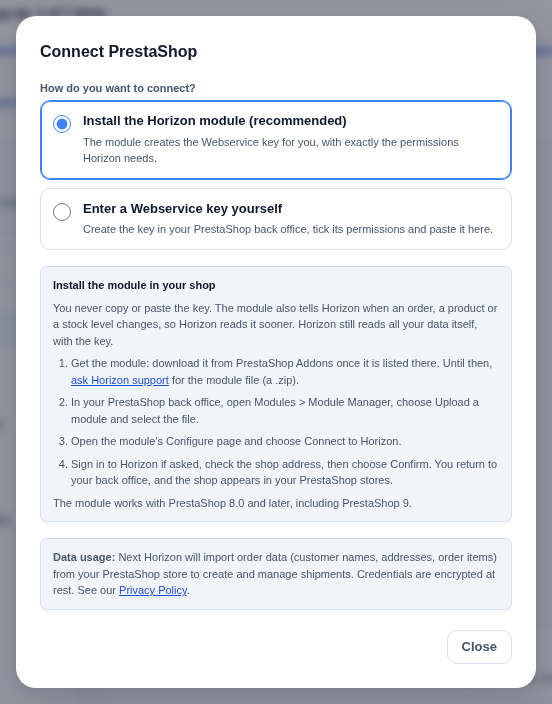
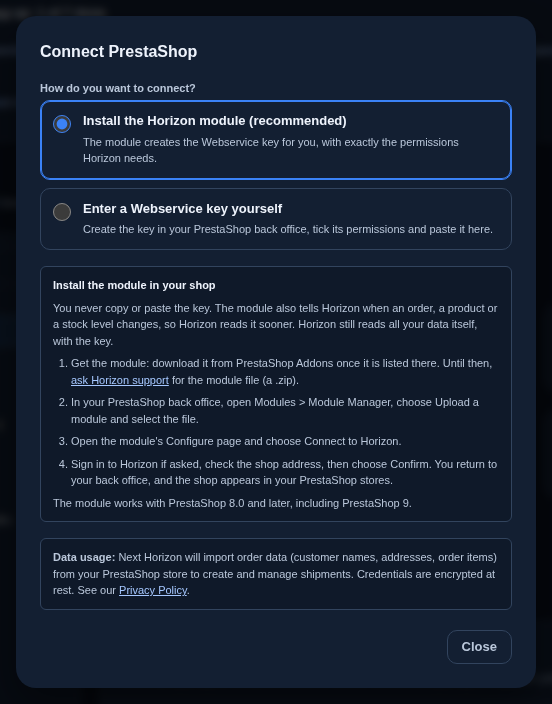
- The module is distributed through PrestaShop Addons. Until the listing is live, write to tech@horizonlogistics.eu for the package.
- In your back office, open Modules, then Module Manager. Choose Upload a module and select the module’s
.zipfile. - When the upload finishes, choose Configure. You can also open the module’s Configure page from Module Manager later.
- Choose Connect to Horizon. Horizon opens in your browser, at
/prestashop/pair. If you are not signed in, sign in first: you come back to the same page. - Check the address under “Shop”, then choose “Confirm”. “Not now” leaves without connecting anything.
- Your browser goes back to the module’s page, which shows the shop as connected. In Horizon, the shop appears in “PrestaShop stores”, marked “Connected with the Horizon module” with the module’s version.
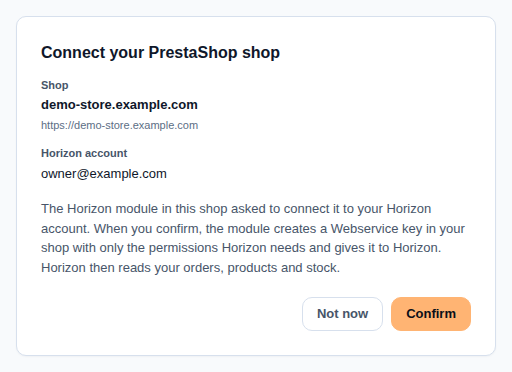
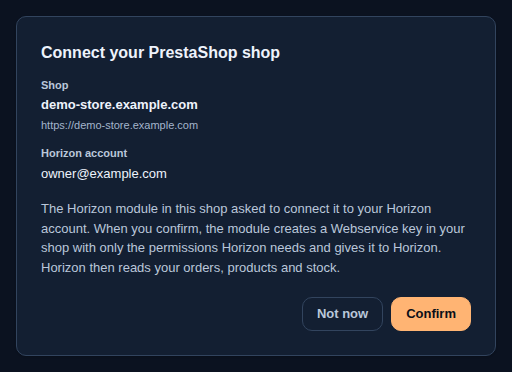
Only the account owner or an administrator can confirm. Other members see the shop and why they cannot confirm.
Horizon checks the shop address, your plan’s store limit and the link back to your shop before it connects anything. If one of them fails, the page says which, and nothing is connected. If the link has expired or is incomplete, open the module again and choose Connect to Horizon.
If you turn the module off or remove it
- Turned off (disabled in Module Manager): Horizon keeps reading your shop on its schedule while the key works, but no longer hears about changes as they happen. The shop’s row says “The Horizon module is turned off”, and the shop appears under “Needs attention” on the Orders page.
- Uninstalled: the module deletes the key it created and tells Horizon, which disconnects the shop as described in Disconnecting. Your orders and stock stay in Horizon. To connect again, install the module and choose Connect to Horizon, or create a key yourself.
Create the Webservice key in your shop
If you do not use the module, create the key yourself. The screen names below were read on PrestaShop 8.2.8 and 9.2.0, in English.
- In your back office, open Advanced Parameters, then Webservice.
- Set Enable PrestaShop’s webservice to Yes and save.
- Choose Add new webservice key. PrestaShop fills in the Webservice account key for you; keep it.
- In Key description, enter a name you will recognise, for example Horizon. Leave Enable webservice key on.
- Under Permissions, tick the boxes from the permission list below. Tick the write boxes only for the write-backs you plan to use.
- Save, then copy the key.
To add a permission later, for example when you switch on a write-back, edit the key, tick the box and save. The key itself does not change, so you do not need to connect again.
To cut Horizon off at once, set Enable webservice key to No or delete the key. Disconnect the shop in Horizon as well, so that it knows the connection has gone.
Connect it in Horizon
In “Stores”, choose “Connect” on the PrestaShop card. “Connect PrestaShop” opens. Choose “Enter a Webservice key yourself”.
- “Store URL” is your shop’s address, starting with
https://. - Under “Authentication method”, keep “API Key” and paste the Webservice key.
- “OAuth2” is for PrestaShop 9 only. It still asks for the Webservice key, because Horizon uses the key to check which PrestaShop version your shop runs, and adds the “Client ID” and “Client Secret” of an Admin API client. On PrestaShop 8, Horizon refuses OAuth2 and asks you to use the API key.
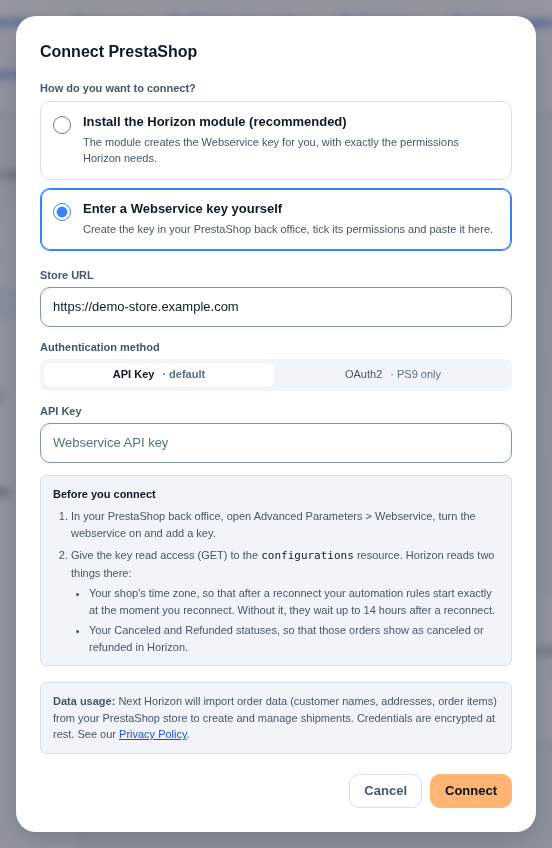
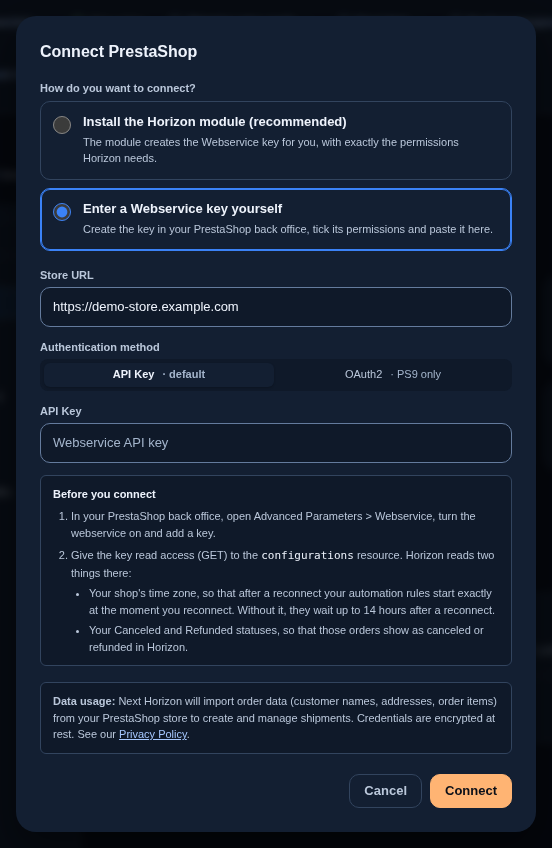
Horizon checks the address, the key, its permissions and the number of active stores before it saves anything. If a permission is missing, the dialog names each missing resource and the box to tick. Your key is encrypted and never shown again. To change it, connect the same shop address again with the new key.
Only the account owner or an administrator can connect a shop. Other members see the shop and its sync times but cannot change anything.
The permissions the key needs
The key’s Permissions table has one row per resource and one box per action. Horizon only needs View (GET) to read, and only the write boxes of the write-backs you switch on.
For reading (always needed)
| Resource | What Horizon reads there | Tick |
|---|---|---|
addresses |
The delivery address of each order | View (GET) |
carriers |
The carrier name and delivery method of each order | View (GET) |
combinations |
Product variants (combinations) | View (GET) |
configurations |
Your shop’s time zone, default language, which order state means what, and whether Multistore is on | View (GET) |
countries |
The country of each delivery address | View (GET) |
currencies |
The currency of each order | View (GET) |
customers |
The customer of each order | View (GET) |
images |
Product images | View (GET) |
languages |
The language of each order and your shop’s default language | View (GET) |
order_carriers |
The tracking number of each shipment | View (GET) |
order_histories |
The history of each order’s state | View (GET) |
order_slip |
Credit slips (refunds) | View (GET) |
order_states |
Your shop’s own order states | View (GET) |
orders |
Orders | View (GET) |
product_option_values |
Variant option names, such as size or colour | View (GET) |
products |
Products | View (GET) |
shops |
How many stores your PrestaShop runs | View (GET) |
states |
The state or province of each delivery address | View (GET) |
stock_availables |
Stock quantities | View (GET) |
order_returns |
Merchandise returns. PrestaShop 9 and later only: PrestaShop 8 has no such resource | View (GET) |
Horizon does not need stock_movements. Your shop’s stock quantities are read from stock_availables only.
Only if you link passport fields to product features
| Resource | What Horizon reads there | Tick |
|---|---|---|
product_features |
The names of your product features, so you can link a passport field to one | View (GET) |
product_feature_values |
The values of those features on your products | View (GET) |
Horizon connects without them. Add them only if you use product features for Digital Product Passports.
For each write-back you switch on
| Write-back | Resource | Tick | What it allows |
|---|---|---|---|
| Shipments | order_carriers |
Modify (PUT) | write the tracking number when Horizon ships |
| Shipments | order_histories |
Add (POST) | set the order state when Horizon ships |
| Stock | stock_availables |
Modify (PUT) | send Horizon’s stock quantities |
| Returns (PrestaShop 9 and later) | order_returns |
Modify (PUT) | set the merchandise return state |
Do not tick Delete (DELETE) or Patch (PATCH) anywhere. Horizon never uses them.
What Horizon reads, and how often
PrestaShop has no webhooks, so Horizon asks your shop for changes on a schedule. With a key you made yourself, nothing in your shop calls Horizon. With the Horizon module, your shop also tells Horizon when something changes, and Horizon reads that change sooner; the schedule runs either way:
- orders every 5 minutes;
- products, stock and credit slips every 15 minutes.
You can also start a read by hand from “PrestaShop stores”, with “Import orders” and “Sync inventory”. If Horizon cannot start it at that moment, it says so, and the scheduled read still runs.
Each shop’s row in “PrestaShop stores” shows when each read last finished: “Orders poll:”, “Products poll:”, “Inventory poll:” and “Credit slips poll:”.
- Products. Products and their combinations become products in Horizon.
- Stock. Your shop becomes one location in Horizon, and its stock follows your shop’s quantities, unless you switch on the stock write-back.
- Orders. Your order history is imported once, then new and changed orders keep arriving. Customers, addresses and tracking numbers are taken from the orders.
- Credit slips. A credit slip in your shop shows on the order in Horizon as the refunded amount. Refunded items of an order that was shipped go back into stock; refunded items of an order not yet shipped are no longer held for it. A slip with an amount and no items changes the refunded amount only.
The first sync
When you connect a shop, Horizon first imports the orders already in it. While it does, the shop’s row says “First sync in progress”. Those orders are filed as history: Horizon buys no label for them and they do not change your stock, which Horizon takes from your shop’s quantities instead. Automation rules run only for orders your shop has genuinely just received.
Order states
PrestaShop lets every shop rename its order states and add its own. Horizon reads your shop’s own order settings to find which state means awaiting payment, payment accepted, processing, shipped, delivered, canceled, refunded or payment error. It never assumes a fixed list, and you cannot change those meanings in Horizon: they follow your shop.
A state you created yourself, or one a module added (a payment module often adds several), does not say what it means. Orders in such a state import with the status “Status not recognised”: they are not treated as paid, they do not move stock, and Horizon does not buy a label for them. The shop’s row says how many orders wait, and the store appears under “Needs attention” on the Orders page.
To give those states a meaning, open “PrestaShop stores”, then choose “Order statuses” on the shop’s row, or “Set up order statuses” in its warning. “Order statuses” lists every state of your shop, with its number, under “Status”, how many of your orders are in it under “Orders”, and what it means to Horizon under “Meaning in Horizon”. A state your shop’s settings already name shows its meaning and cannot be changed. For each other state, pick one of:
- “Paid, ready to ship”;
- “Awaiting payment”;
- “Shipped”;
- “Canceled”;
- “Refunded”.
Horizon may show a suggestion under a state, read from the state’s own options in PrestaShop (marked as paid, shipped and so on). It is only a hint: nothing is chosen until you pick it. Then choose “Save statuses”. The orders already waiting in a state you just mapped take its status at once; Horizon updates their payment and stock the next time it reads a change to the order from your shop. Only the account owner or an administrator can save; other members see the list.
You can find the number of each state in your back office under Shop Parameters, then Order Settings, then Statuses, in the Order statuses list.
Time zone
Horizon reads your shop’s time zone from its settings when you connect, and again once a day. It uses it so that after a reconnect your automation rules start exactly when you reconnect. If Horizon cannot read it, the shop’s row says so, and Horizon treats your shop’s times with a safety margin: orders placed in the first 14 hours after a reconnect then do not trigger automation rules. Give the key View (GET) on configurations, then choose “Check again” on the shop’s row.
Several stores or languages
Several stores. Horizon connects a PrestaShop that runs one store. When Multistore is turned on (Shop Parameters, then General, Enable Multistore) and more than one store is active, Horizon refuses the connection and imports nothing. With Multistore turned off, a second store does not block the connection.
If a connected shop later turns on Multistore with several active stores, Horizon pauses that shop before its next orders read. The shop’s row says “Sync is paused” and why, and nothing is imported or written back until it is resolved. Turn Multistore off or keep one store active, then choose “Check again”. Horizon checks the connection again and, if the shop runs one store, resumes where it stopped.
A key that loses a read permission pauses the shop the same way: the row names the missing permissions. Tick them on the key, save, then choose “Check again”.
Several languages. A shop with several languages connects normally. Horizon reads product and order state names in your shop’s default language. A name left empty in the default language stays empty in Horizon; Horizon never fills it from another language. Each order keeps its customer’s language.
What Horizon writes, and when
The shop’s row in “PrestaShop stores” has a “Write back to PrestaShop” section with three switches:
- “Mark orders shipped in PrestaShop”;
- “Send stock levels to PrestaShop”;
- “Update merchandise returns in PrestaShop”.
All three are off by default, including for shops connected before they existed. Only the account owner or an administrator can switch them; other members see their position.
When you switch one on, Horizon first asks your shop which permissions the key holds, and refuses with each missing permission named if one is lacking. None of them writes while the shop is paused, needs reconnecting or has been disconnected. Switching one off never calls your shop.
Shipments
When you buy a carrier label in Horizon for an order imported from this shop, Horizon writes the label’s tracking number on the order’s carrier line and moves the order to your shop’s own Shipped state, the one your shop’s settings name. PrestaShop sends no email to your customer for either change, so your customer hears from Horizon only.
PrestaShop keeps one tracking number per order, so a label with several parcels writes its main tracking number. Horizon does not write when:
- the order is canceled, refunded, in payment error, or in a state that still needs a meaning;
- the order is already shipped in your shop;
- the order already carries a different tracking number. Horizon never overwrites yours;
- the label has no tracking number.
Each order is written once.
Stock
Stock then goes one way only, from Horizon to your shop. When stock changes in Horizon, Horizon sends the available quantity of that product or combination to your shop. While this write-back is on, Horizon stops taking stock figures from your shop, so the two cannot undo each other: a change you make in your back office is replaced at Horizon’s next change for that product. A change that came from your shop is never sent back.
Nothing is sent for a product that is not linked to this shop, for a kit, or for a product whose stock PrestaShop computes from warehouses (Advanced Stock Management on PrestaShop 8). Horizon still reads your shop’s quantities while the switch is on, and the section counts the products whose quantity in your shop differs from Horizon’s at the last read.
Returns (PrestaShop 9 only)
When a return changes status in Horizon, Horizon sets the matching state on the order’s merchandise return in your shop. Horizon never creates a merchandise return: the customer or you create it in PrestaShop.
PrestaShop’s return states cannot be read through the Webservice, and every shop can add its own. So the first time you switch this on, “Match return statuses” asks for the number of the return state each Horizon return status sets. It fills in the numbers of a fresh PrestaShop install (2 Waiting for package for approved, 3 Package received for received, 4 Return denied for rejected, 5 Return completed for completed). Check them in your back office under Shop Parameters, then Order Settings, then Statuses, in the Return statuses list, then choose “Confirm and turn on”. A status without a number writes nothing.
PrestaShop 8 has no merchandise returns in its Webservice, so this switch cannot be turned on there: it says so instead.
Horizon only sets the return’s state. It never refunds, never creates a credit slip and never issues store credit or a voucher in your shop. Those stay with you, in your back office; Horizon refuses those actions on a PrestaShop return.
When a write-back fails
A failed write never stops the reading. The shop keeps syncing, and the write-back stays switched on. The “Write back to PrestaShop” section lists the latest failures: what was being written (a shipment, stock or a return), the reason in a sentence, and when.
| Reason | What to do |
|---|---|
| Your shop refused the key, or the key lacks the write permission | Tick the permission from the permission list on the key and save. |
| Not found in your shop | Nothing, unless the order, product or return should exist. |
| PrestaShop does not allow a shipment for this order (canceled, refunded, payment error or a state with no meaning) | Resolve the order in your shop, or give its state a meaning in “Order statuses”. |
| Your shop has no Shipped state in its settings | Set the shipped order state in your shop’s order settings. |
| The order has no carrier line in your shop | Add a carrier to the order in your shop. |
| The product has no stock row in your shop, or its stock is computed from warehouses | Check the product’s stock settings in your shop. |
| The order has several merchandise returns in your shop | Set the return’s state in your shop by hand. |
| PrestaShop refused the update | Contact support with the order number. |
| PrestaShop answered in a way Horizon could not confirm, so the update is not counted as done | Check the order, product or return in your shop, then contact support. |
| Your shop could not be reached, had an error, or asked Horizon to slow down; Horizon tried again and then stopped | Only if it keeps happening, check that your shop is up. |
| The store address was refused | Reconnect with your shop’s public https:// address. |
If you need a write repeated after fixing the cause, contact support.
What is not supported
- Credit slips and store credit. Horizon reads your credit slips but never writes one, never refunds and never issues store credit or vouchers in PrestaShop.
- Stock movements. Horizon does not read PrestaShop’s stock movements. Your shop does not record one for every order line, so Horizon takes stock from your shop’s quantities instead.
- Data pushed from your shop. Even with the Horizon module, Horizon takes no order, product or stock data from a message your shop sends. The module only says that something changed; Horizon reads the record itself through the key.
- Several active stores under Multistore, as described above.
Disconnecting
Use “Disconnect” in “PrestaShop stores”. Imported orders and stock stay in Horizon, and the shop stops counting as a connected store. Horizon stops reading from and writing to the shop, and the “Write back to PrestaShop” switches turn off. Then turn the key off or delete it in your back office. If you connected with the module, choose Disconnect from Horizon on the module’s page or uninstall the module instead: either deletes the key it created.
To reconnect later, connect the same shop address again. Horizon picks up where it stopped: orders, the location and stock are not imported a second time. Turn the write-back switches on again if you want them; the return status matches you confirmed are kept. Orders placed while the shop was disconnected are imported then, but do not trigger automation rules. Reconnecting takes a store slot on your plan again.
Plans limit how many stores you can connect. See Connect a store and Usage and limits.
Support: write to tech@horizonlogistics.eu, answered within one business day.