Connect Business Central
Horizon connects to Microsoft Dynamics 365 Business Central online, the version Microsoft runs for you. It reads your Business Central data on a schedule. It never writes anything to Business Central.
Connecting takes four steps, usually done by two people:
- Connect with Microsoft. You start in Horizon and sign in with your organisation’s Microsoft account.
- Approve. On the first connection, a Microsoft administrator of your organisation approves Horizon’s Business Central permission for your tenant. Horizon then asks you to add it in Business Central.
- Register Horizon in Business Central. Someone who administers Business Central adds Horizon’s client ID and a permission set.
- Connect and pick the company. You choose “Connect with Microsoft” again and pick the company Horizon should read.
Before you start
- An administrator for the approval. The approval in step 2 must be given by a Global Administrator or a Cloud Application Administrator of your organisation’s Microsoft tenant. If you are not one, ask them to be on hand.
- A Business Central administrator. Step 3 needs a Business Central user allowed to manage Microsoft Entra applications, usually a user with the SUPER permission set.
- A work or school Microsoft account. Connecting with Microsoft signs you in with your organisation’s account. Personal Microsoft accounts (Outlook.com, Hotmail) cannot be used.
- The environment name. Business Central environments have names such as Production or Sandbox. You find them in the Business Central admin center. You type the name when you connect.
- Your plan. ERP connections are not included in every plan. When yours does not include them, Horizon says so and offers the upgrade instead of the form.
Step 1: connect with Microsoft
- Go to “Settings”, then “ERP”.
- On the Business Central card, choose “Connect with Microsoft”.
- Sign in with your work account and choose your organisation’s account if Microsoft asks.
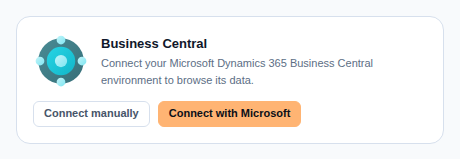
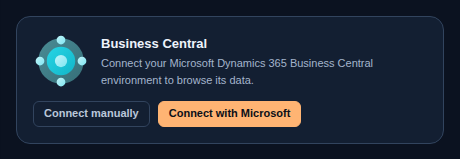
The first time anyone from your organisation does this, Microsoft shows a consent screen that asks to sign you in and read your basic profile. That screen is only the sign-in. It does not give Horizon access to Business Central.
Step 2: approve Horizon’s Business Central permission
Horizon reads Business Central as an application, not as you. Microsoft therefore asks an administrator of your tenant to approve it once. This approval is called admin consent.
You do not need to find a link for it. Right after the sign-in, Horizon checks whether your tenant has granted its Business Central permission. If it has not, Horizon sends you straight to Microsoft’s approval page for your tenant. This is a second Microsoft screen, and it names Dynamics 365 Business Central. An administrator accepts there. You do not sign in again.
So on a first connection you see two Microsoft screens: the sign-in, then the Business Central approval. They cannot be merged into one, because Microsoft grants an application’s permission only on its approval page. Once your tenant has approved Horizon, later connections show only the sign-in, or nothing at all if you are already signed in.
The approval page lists the Business Central access Horizon asks for. Microsoft offers applications no read-only version of that access. What Horizon can actually do inside Business Central is limited by the permission set you give it in step 3, and Horizon only ever reads.
Back in Horizon, “Almost done” opens. Enter the “Environment” name, for example Production, and optionally a “Connection name” you will recognise. Choose “Finish connection”. If you use two-step verification, Horizon may first ask for a fresh code from your authenticator app.
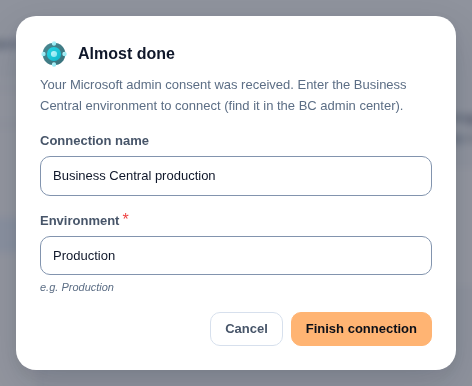
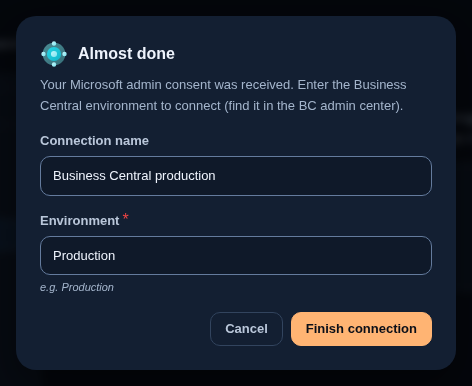
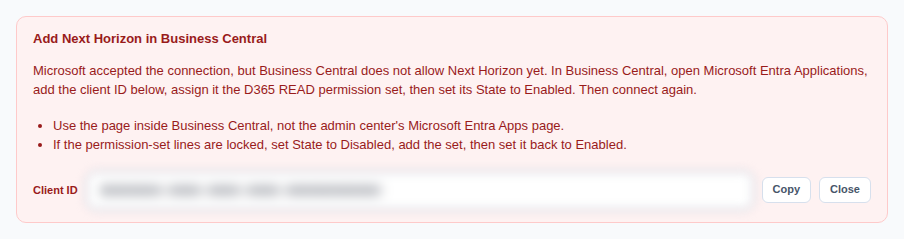
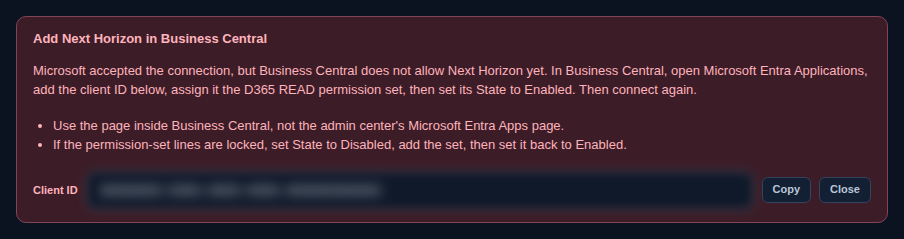
If Horizon is not registered in Business Central yet, Horizon now shows “Add Next Horizon in Business Central” with its client ID and a Copy button. That is expected on a first connection: go on to step 3.
Step 3: register Horizon in Business Central
Business Central only answers an application it knows. Register Horizon in each Business Central environment you want to connect.
Wrong page. The Business Central admin center also has a page called Microsoft Entra Apps. It looks like the right place but it is not: it authorises apps to manage your environments, and does not let Horizon read your data. Use the Microsoft Entra Applications page inside Business Central itself.
- Sign in to Business Central in the environment you are connecting. Use the search (the magnifying glass), type Microsoft Entra Applications and open the page.
- Choose New.
- In Client ID, paste Horizon’s client ID. Copy it from Horizon’s “Add Next Horizon in Business Central” message rather than typing it.
- In Description, enter Horizon Logistics.
- Leave State on Disabled for now.
- Under User Permission Sets, add the permission set D365 READ. Leave Company empty to cover every company in the environment, or name one company.
- Set State to Enabled.
- Close the page. The registration is saved as you go.
Locked lines. While State is Enabled, Business Central does not let you add or change the permission-set lines. If they are locked, set State to Disabled, add the set, then set it back to Enabled.
D365 READ lets Horizon read your Business Central data and change nothing. Do not use D365 AUTOMATION: with it, Business Central refuses (403) all 18 entities Horizon reads, and it gives access to Business Central’s administration (users, permission sets and extensions) instead.
If you connect a second environment, for example a sandbox beside production, register Horizon in that environment too.
Step 4: connect and pick the company
- In Horizon, choose “Connect with Microsoft” again on the Business Central card. Microsoft signs you in, usually without asking anything, and does not ask for the approval again.
- In “Almost done”, enter the same “Environment” name and choose “Finish connection”.
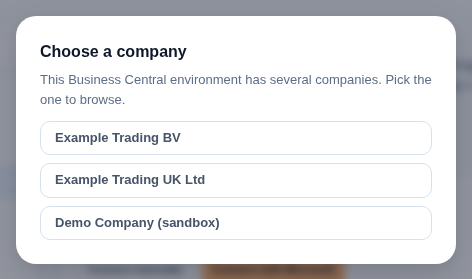
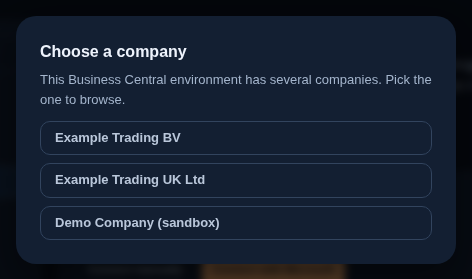
- If the environment holds several companies, “Choose a company” opens. Pick the one Horizon should read.
The card then shows the connection as active. Horizon checks that it can read your environment before it saves the connection. The tenant is taken from your Microsoft sign-in, so a connection can only be made to a tenant you belong to.
A new connection reads nothing until you turn on what it should import (see What Horizon reads).
To connect another environment or company, use “Add another” at the foot of a connected card.
Connecting with your own app registration
If your organisation prefers to use an app registration of its own, choose “Connect manually” instead. You need:
- “Microsoft Entra tenant ID”: your tenant’s ID, a GUID.
- “Application (client) ID” and “Client secret”: from your own app registration. It needs Microsoft’s Dynamics 365 Business Central application permission, approved by an administrator.
- “Environment”: the environment name, for example Production.
Register your own app’s client ID in Business Central exactly as in step 3. The client secret is stored encrypted in our secure vault and is never shown again. When the secret expires, connect again with the new one.
What Horizon reads
Horizon reads your Business Central data on a schedule and keeps some of it in Horizon:
- Stock movements. Horizon reads the item ledger and records each movement against one location in Horizon that stands for this connection. It starts from an opening balance, then adds every new entry. Only items linked to a Horizon product are counted (see below). Horizon never mixes these figures into the stock of your stores; it keeps them apart so you can compare them.
- Incoming stock. Open purchase orders give the quantities on their way to you.
- Locations. Your Business Central locations appear as locations in Horizon.
- Sales orders. Horizon keeps a read-only copy of your open sales orders for reference. They never become Horizon orders, and nothing ships from them.
- Products, only if you ask. With “Create products from items” turned on, “Import as products” shows a preview of the items that would become Horizon products, and “Create products” creates them. Items already in your catalogue are linked by SKU or GTIN rather than duplicated. Service and non-stock items, and items blocked in Business Central, are skipped. Read the preview before you create anything.
Items are linked to your existing Horizon products by “Import preview”, then “Apply matching”. Anything that needs a decision waits in “Review queue”.
Each of the first four kinds of data has its own switch on the connection, under “What Horizon imports”: “Stock movements”, “Incoming purchase quantities”, “Locations” and “Copy of open sales orders”. A new connection starts with all of them off. Turn on the ones you want.
“Browse data” shows a sample of any of the objects Horizon may read, live from Business Central, without storing it. “Sync now” under “Item ledger” runs a stock read straight away instead of waiting for the next one.
What Horizon never does
Horizon never writes to Business Central. Every request it makes to Business Central is a read. The only other requests go to Microsoft’s sign-in service, to obtain short-lived access.
Horizon does not create orders, shipments or labels from your Business Central data, and does not change anything in your Business Central environment.
When something goes wrong
| What happens | What it means and what to do |
|---|---|
| “Business Central permission not yet granted for your organisation. A Microsoft administrator must approve it; then start the connection again.” | Your tenant has not approved Horizon’s Business Central permission (step 2), or the approval was cancelled. Ask a Global Administrator or a Cloud Application Administrator to accept, then connect again. See What to check in Business Central. |
| “Add Next Horizon in Business Central”, or “Give Next Horizon access in Business Central” when Horizon is registered but has no permission there | The approval is done, but step 3 is missing or incomplete in this environment. Check that Horizon’s client ID is on Microsoft Entra Applications inside Business Central (not the admin center’s Microsoft Entra Apps page), that State is Enabled, and that the permission set is assigned. Then choose “Test”, or connect again. See What to check in Business Central. |
| Horizon says Microsoft sign-in is temporarily unavailable | Microsoft’s sign-in service did not answer. Nothing is wrong with your settings. Try again in a few minutes. |
| You keep being sent back to Microsoft’s approval page | The approval was not given for the organisation. The person accepting must be a Global Administrator or a Cloud Application Administrator. See What to check in Business Central. |
| The permission-set lines on the Business Central card cannot be edited | State is Enabled. Set it to Disabled, add the permission set, then set it back to Enabled. |
| “Connect with Microsoft is not available yet. Use the manual connection below.” | Use “Connect manually” with your own app registration. |
| “Business Central permission granted. Finish the connection.” | Approval received. Enter the environment name in “Almost done” to finish. |
| “Microsoft consent was not completed. Please try again.” | The approval was cancelled or refused. Start again from “Connect with Microsoft”. |
| “Connection test failed.” | Check the environment name, and the registration and permission set in Business Central. If you connected manually, check that the client secret has not expired. |
| “Could not connect Business Central.” with no other detail | Try again. If it keeps happening, contact support. |
What to check in Business Central
Two of Horizon’s answers point at a setting outside Horizon. Each needs a different person, so check the one Horizon showed.
Horizon says Business Central permission is not yet granted for your organisation. Horizon reached Microsoft, but your tenant has not given Horizon its Business Central permission. Horizon checks this before Business Central is asked anything, so nothing in Business Central can fix this one.
- The person who approves must be a Global Administrator or a Cloud Application Administrator of the tenant you signed in with. Anyone else sees the approval page but cannot accept for the organisation.
- They must choose Accept on Microsoft’s page. If they cancel, Horizon says the consent was not completed.
- To confirm the approval, your administrator opens the Microsoft Entra admin center, goes to Enterprise applications, and searches for Horizon’s client ID from step 3. Under Permissions, Dynamics 365 Business Central, API.ReadWrite.All must show that admin consent was granted for your organisation. If the list shows only openid and profile, someone signed in but the approval itself never ran: approve again from “Connect with Microsoft”.
- Then choose “Connect with Microsoft” again in Horizon. You do not need to register anything again in Business Central.
Horizon asks you to add Next Horizon in Business Central. It shows “Add Next Horizon in Business Central” with a client ID. The approval is done and Microsoft issued access, but Business Central refused it. Check these in the Business Central environment you are connecting. A registration in one environment does not count for another.
- Inside Business Central, not in the admin center, search for Microsoft Entra Applications and open it. A line must exist whose Client ID is exactly the one Horizon shows. Copy it from Horizon with “Copy” rather than typing it.
- Open that line. State must be Enabled. A new line starts as Disabled, and Business Central refuses every request until it is enabled. While it is Enabled, the permission-set lines are locked: to change them, set State to Disabled, make the change, then set it back to Enabled.
- Under User Permission Sets, D365 READ must be listed. When Horizon shows “Give Next Horizon access in Business Central”, it is registered but has no permission: this is the line that is missing. If you named a company there, it must be the company you choose in Horizon; leave Company empty to cover them all.
- Check the environment name you typed in Horizon. A registration made in Sandbox does not let Horizon read Production.
- Choose “Test” on the card, or connect again. No new approval from your Microsoft administrator is needed.
Reconnecting or approving again
If your administrator removes Horizon from your Microsoft tenant, or Horizon’s registration in Business Central is disabled, Horizon can no longer read and the card shows “Error”. Fix the cause, then choose “Test”.
If Horizon changes the Microsoft application it uses, we tell you beforehand. Your administrator then approves the new application (step 2), you register its client ID in Business Central (step 3), and you connect again (step 4). Connecting again after a disconnect deletes the copies described under Disconnecting and reads them afresh.
Disconnecting
Choose “Disconnect” on the card, then “Yes” when it asks “Disconnect this environment?”.
Horizon stops reading from the environment at once and deletes the connection together with what it copied for it: the item links, the reference copies of purchase orders, receipts and sales orders, and the sync history. If you connected manually, the stored client secret is deleted from our vault.
Locations and products already created in Horizon stay, and the stock recorded for the connection stays at its last figure.
Nothing changes in Business Central. To remove Horizon’s access completely, delete its registration on Microsoft Entra Applications in Business Central, and ask your administrator to remove the Horizon application from your Microsoft tenant.
Support: write to support@horizonlogistics.eu.