Connect SAP S/4HANA
Horizon connects to SAP S/4HANA through SAP’s standard OData APIs, whether your system runs in SAP’s cloud or on your own servers, as long as it can be reached from the internet (see Before you start).
Horizon only reads from SAP. It never writes anything to your SAP system. Once connected, you can:
- browse a sample of your SAP data, live, without storing it;
- turn on scheduled reading of your SAP stock levels into Horizon;
- keep a read-only reference copy of your SAP sales orders and outbound deliveries. They never become Horizon orders or shipments.
Each of these is off until you turn it on. See What Horizon reads from SAP.
This page is for you and your SAP administrator. The administrator prepares the SAP side and gives you a credential. You, or another Admin on your Horizon account, enter it in Horizon.
Before you start
Choose the credential type first
Settle this with your SAP administrator before anything else, because it decides what they set up.
| Credential | When to use it | Supported |
|---|---|---|
| An API key for SAP’s Business Accelerator Hub sandbox | To try Horizon against SAP’s public demo system, before you connect your own. The data is SAP’s sample data, not yours | Yes, for the sandbox only |
| OAuth 2.0 client credentials, issued through a communication arrangement | Your own SAP system. The secret never travels with a data request, and it can be replaced without touching a user | Yes, recommended |
| A communication user with a password | Your own SAP system, when OAuth is not available to you | Yes |
| A client certificate (X.509), SAML, or principal propagation | No. Horizon refuses the connection and says the credential type is not supported |
For OAuth, the client must use a client ID and a secret. If your system only issues clients bound to a certificate, Horizon cannot connect to it yet.
For a communication user, the user name cannot contain a colon. Passwords with accented or other non-English characters work.
SAP can lock a communication user after a few failed logons. Horizon stops at the first password SAP rejects and never sends it again, but typing a wrong password into the dialog several times can still lock the user. Know who can unlock it before you start.
Your system must be reachable from the internet
Horizon calls your SAP system directly, over HTTPS, at a public address with a publicly trusted certificate. It does not connect through SAP Cloud Connector or a VPN, and it refuses private and internal addresses.
An on-premise or Private Edition system therefore has to be published through a reverse proxy or an API gateway. If something in front of SAP answers with its own sign-in page, Horizon refuses that answer too, because it is not SAP data.
Expose the services Horizon reads
Your SAP administrator adds each service below to an active communication arrangement for the user or client you will give Horizon. They pick the communication scenario that exposes each service on your release.
| What Horizon reads | Service your SAP administrator looks for |
|---|---|
| Business partners | API_BUSINESS_PARTNER |
| Products and product groups | API_PRODUCT_SRV, API_PRODUCTGROUP_SRV |
| Sales orders and their items | API_SALES_ORDER_SRV |
| Purchase orders and their items | api_purchaseorder_2, the OData V4 purchase order service. The older V2 purchase order service is not used |
| Material stock | API_MATERIAL_STOCK_SRV |
| Material documents and their items | API_MATERIAL_DOCUMENT_SRV |
| Plants, company codes and countries | API_PLANT_SRV, API_COMPANYCODE_SRV, API_COUNTRY_SRV |
| Outbound deliveries and their items | API_OUTBOUND_DELIVERY_SRV, version 2 |
You do not have to expose all of them. To connect, at least one of business partners, products, sales orders or purchase orders must be exposed: Horizon checks the connection by reading one row from the first of those that answers. A service you leave out is refused when you browse it, and the others still work. Each scheduled reading needs its own service: material stock for stock levels, sales orders for the sales order copy, and outbound deliveries for the delivery copy.
Connect it in Horizon
- Go to “Settings”, then “ERP”.
- On the “SAP S/4HANA” card, choose “Connect SAP”. “Connect SAP S/4HANA” opens.
- Under “Connection type”, choose “SAP sandbox (API key)”, “My SAP tenant (OAuth 2.0)” or “My SAP tenant (communication user)”.
- Fill in the fields for that type, described below.
- Choose “Connect SAP”. If you use two-step verification, Horizon may first ask for a fresh code from your authenticator app.
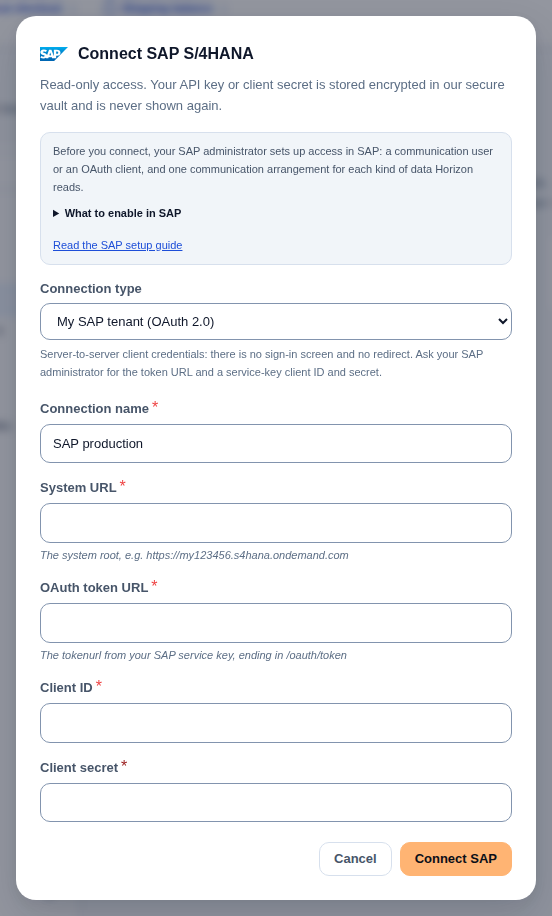
The fields:
- “Connection name” is a name you will recognise, for example SAP production. Each SAP connection on your account needs its own name.
- “System URL” is your system’s root address, for example
https://my123456.s4hana.ondemand.com. For the sandbox it is filled in for you. - With “SAP sandbox (API key)”: “Sandbox API key” is the API key shown on your profile at api.sap.com.
- With “My SAP tenant (OAuth 2.0)”: “OAuth token URL” is the token address from your SAP service key, ending in
/oauth/token. “Client ID” and “Client secret” come from the same place. - With “My SAP tenant (communication user)”: “Communication user” is the user from your communication arrangement, not your own SAP logon. “Password” is its password.
Horizon checks the connection before it saves anything. With OAuth it first asks SAP for a token, then it reads one row. If the check fails, nothing is saved. If SAP has not answered within about a minute, the check stops and says that SAP could not be reached.
Your API key, client secret or password is stored encrypted in our secure vault and is never shown again. A connection’s credential cannot be edited. To change it, connect again under a new name with the new values, then disconnect the old connection.
To connect a second system, for example a test system beside production, use “Add another” at the foot of a connected SAP card.
What the connection does
Each connection has its own card. It shows the connection’s name, its state (“Active” or “Error”) and its connection type. When the last check failed, the card says why in plain words.
- “Test” runs the same check again. If it fails, the card turns to “Error”, with one exception: when SAP simply could not be reached, the card keeps its state, since that says nothing about the credential.
- “Browse data” lets you pick one of fifteen objects in “Entity” and choose “Load”. Horizon reads a sample of rows live from SAP and shows them, without storing them. The objects are business partners, products, product groups, sales orders, sales order items, purchase orders, purchase order items, material stock, material documents, material document items, plants, company codes, countries, outbound deliveries and outbound delivery items.
What Horizon reads from SAP
Each SAP card has a “What Horizon reads from SAP” panel with three switches. Every switch is off when you connect. Nothing is copied into Horizon until you turn one on, and turning one on never writes anything to SAP.
| Switch | What it does | What it does not do | How often |
|---|---|---|---|
| “Stock levels” | Copies the stock of each SAP plant into its own SAP location in Horizon, one location per plant | It never changes your store stock and is never added to it. Horizon does not ship store orders from these locations | Every 30 minutes |
| “Sales orders (reference copy)” | Keeps a read-only copy of your SAP sales orders created in a set period, and updates them as they change in SAP, including once they are completed | They never become Horizon orders. Nothing is shipped, reserved or counted as a sale from them | Every hour |
| “Outbound deliveries (reference copy)” | Keeps a read-only copy of your SAP outbound deliveries and their items | Horizon does not create shipments, labels or tracking from them | Every 30 minutes |
The sales order copy starts with the orders created in the 90 days before its first run. Before that run, the panel says so; afterwards it gives the date the copy starts from, for example “created since July 7, 2026”. From then on, Horizon keeps every sales order created since that date and follows its changes. The delivery copy starts with the deliveries of the last 30 days, then follows new and changed ones.
The sales order and delivery copies are for reference only: no screen in Horizon lists them yet, and nothing in Horizon uses them. Business partners are not copied.
Turning a switch off stops that reading. What it already copied stays in Horizon.
What the panel tells you
For each switch that has run, the panel shows when it last ran, how many rows it read from SAP and how many it saved, and when it last succeeded. Under “Stock levels”, once Horizon has read all of your stock at least once, a line also gives the time that full read finished: “Last complete stock read …” (with the date and time). On a large SAP system this time can be older than the last run, because reading all of your stock takes several runs. Then one line says where it stands:
| What you see | What it means | What to do |
|---|---|---|
| “Up to date: the last run read everything.” | Horizon has read everything there is to read | Nothing |
| “Catching up: …rows read in the last run; the next run continues from there.” (with the number of rows) | There was more to read than one run reads, for example on the first runs. Each run picks up where the last one stopped. On a large SAP system, stock is read over several runs every time, so the stock line shows catching up most of the time: that is normal | Nothing. It turns to up to date on its own |
| “Stuck: the last two runs stopped at the same place, so the next run will not get further. Contact support.” | Horizon cannot get past a point in your SAP data on its own | Contact support and name the switch |
| “Stuck: the stock read stopped at the same place on its last two runs, so part of your stock is not updated and stock that SAP no longer reports is not cleared. Contact support.” | Horizon cannot get past one point in your SAP stock on its own, for example a single material in one plant with more than 5,000 stock rows (many storage locations or batches). Until it can, the rest of your stock is not refreshed and nothing is set to zero | Contact support |
When a run is stuck, its badge reads “Incomplete”.
Who can turn the switches on
The account owner and anyone with the “Admin” role. A “Viewer” sees the switches and their status but cannot change them, and the panel says “You can see these settings. Only the account owner or an administrator can change them.” Changing a switch does not ask for a two-step verification code.
Horizon reads from a connection only while it is “Active”. If the card shows “Error”, every scheduled reading for it pauses until a test succeeds, and the panel says “Skipped because this SAP connection needs attention. Run Test on this card.” Fix the cause, then choose “Test”.
How stock is matched
- A SAP material is copied only when one of your Horizon products has exactly the same SKU as the SAP material number. Horizon never creates a product from SAP stock. When materials have no matching product, the panel tells you how many.
- Some SAP systems return material numbers padded with leading zeros. Horizon compares them exactly, so a padded number does not match a SKU written without the zeros.
- The unit in SAP must be the same as the product’s unit. Horizon never converts units, and some SAP systems use their own unit codes (
ST) where your products sayPC. A material whose unit differs, or whose quantity is not a whole number or is negative, is left out, and the panel says “Some SAP quantities were left out because their unit or amount could not be used.” - A material that matches more than one product, or that matches a kit or bundle, is left unchanged, and the panel says so.
- Only unrestricted stock that you own counts. Stock in quality inspection, blocked stock and special stock such as consignment stock are not copied. Tell support if your business counts stock differently.
- Each run sets the Horizon figure of the materials it read to SAP’s figure. On a large system Horizon reads your stock over several runs. A material that is no longer in SAP goes to zero only once a full read of your stock has completed, never part way through.
Limits worth knowing
- Stock: Horizon reads 5,000 stock rows from SAP in one run, every 30 minutes. A larger stock list is read over several runs, and the stock line shows catching up meanwhile. At 100,000 stock rows a full read takes about 10 hours, so a figure can be that old. Only a single material in one plant with more than 5,000 stock rows stops the reading, and the line then shows it as stuck.
- By default Horizon reads stock from all your plants, and each sales order run looks 5 minutes back again for changes SAP saves late. Our team can change either for a connection on request: the list of plants to read, or a longer look-back. There is no screen in Horizon for these settings; contact support.
- When a full read of your stock has not finished within 24 hours, the connection is flagged to our team. If a full read of your stock normally takes longer, our team can set a longer time for your connection on request. There is no screen for this either.
- On a day with many outbound deliveries, the delivery copy can take several runs to read the deliveries of that day and the day before, and its line shows catching up meanwhile. A delivery changed today then reaches the copy within a few runs, not always at the next one.
- A sales order or a delivery deleted in SAP stays in Horizon’s copy.
- The sales order copy keeps every order created since its start date. Horizon does not remove older orders from it.
What it does not do
- It writes nothing to SAP. There is no write-back.
- It creates no orders, shipments, labels or customers in Horizon from SAP data, and there is no catalogue import or product matching for SAP.
- Product passports can be filled from SAP’s product master by a separate nightly sync. Our team sets it up with you, including which of your classification characteristics hold which passport fields. Contact support if you want it.
- It does not sign in with certificates, and it does not connect through SAP Cloud Connector or a VPN.
SAP connections are not included on every plan. If yours does not include them, connecting is refused with “ERP connections aren’t included in your current plan. Upgrade to connect your ERP.”
Error messages and what to do
| What you see | What to do |
|---|---|
| “SAP rejected these credentials. Check the user and secret in SAP, then connect again. Repeated failures can lock a communication user.” | Check the values with your SAP administrator before trying again. For a communication user, do not keep retrying: ask whether the user is locked first. |
| “SAP accepted these credentials but is not exposing this API. Ask your SAP administrator to add the service to this connection’s Communication Arrangement.” | Your SAP administrator adds the service for that object from the list above. |
| “SAP refused access to this service without saying why. Check this connection’s credentials first, then ask your SAP administrator whether the service is exposed in its Communication Arrangement.” | Check the credential, then the communication arrangement. Something in front of SAP, such as a firewall, can also cause this. |
| “Horizon can only reach SAP systems published on a public HTTPS address. An on-premise or Private Edition system has to be exposed through a reverse proxy or a private network link. Contact support if you need one.” | Use your system’s public https:// address. |
| “Horizon can only reach OAuth token endpoints published on a public HTTPS address. Check the OAuth token URL with your SAP administrator.” | Use the public token address from your SAP service key. |
| “SAP answered in a different OData version than the system URL implies. Check the URL with your SAP administrator.” | Enter the system root as the System URL, without a service path after it. |
| “The stored credential for this connection is missing or incomplete, so nothing was sent to SAP. Reconnect to enter it again.” | Connect again under a new name, then disconnect this connection. |
| “A communication user name cannot contain a colon. Check the user in SAP and connect again.” | Ask your SAP administrator for the exact user name. |
| “Horizon could not reach your SAP system. Check the system URL, or try again in a few minutes. If it keeps failing, your SAP system may not be reachable from the internet.” | Check the System URL, and that your system is up and reachable from the internet. Then try again in a moment. |
| “SAP answered with a web page instead of data, often a sign-in page. Check that the system URL points at your SAP system’s API address, not at a sign-in or portal page.” | Ask your SAP administrator for the address of the system’s APIs. |
| “This sign-in method is not supported. Use a sandbox API key, OAuth client credentials or a communication user with a password. Certificates, SAML and principal propagation are not supported.” | Ask for OAuth client credentials or a communication user instead. |
| “Only the account owner or an administrator can connect, test or disconnect SAP.” or “Only the account owner or an administrator can change what Horizon reads from SAP.” | Ask your account owner or an Admin. |
| “You already have a SAP connection with this name. Choose another name.” | Choose another name. |
| “Some required fields are empty. Fill in every field, then try again.” | Fill in every field for the connection type you chose. |
| “Some details are not valid. Check the connection type and the fields, then try again.” | Check that you picked a connection type and filled in its fields. |
| “We could not store or read the credential securely just now. Nothing was changed. Please try again in a moment.” | Try again in a few minutes, and contact support if it keeps happening. |
| “We could not delete the stored credential just now, so this connection is kept. Nothing was changed in SAP. Try disconnecting again later, and contact support if it keeps happening.” | Shown on the card after a disconnect that could not delete the credential. The card shows “Error” and Horizon stops reading from the connection. Try “Disconnect” again later, and contact support if it keeps happening. |
| “SAP returned an error we could not read. Try again, and contact support if it keeps happening.” | Often a field Horizon reads does not exist on your SAP release, or is restricted. Contact support and name the object you were browsing. |
| “This kind of SAP data cannot be shown here.” | Reload the page and pick an object from the list. |
| “Enter the code from your authenticator app to confirm this change.” | Enter the current code from your authenticator app. |
| “The last check of this connection failed. Run Test again, or reconnect if it keeps failing.” | Choose “Test”. If it keeps failing, connect again under a new name and disconnect this connection. |
| “We could not load these settings for this connection. Reload the page to try again.” | Reload the page. |
| “We could not save this change. Please try again.” or “This change could not be saved. Reload the page and try again.” | Reload the page and change the switch again. |
| “Something went wrong during the last run. Horizon tries again at the next run.” | Wait for the next run. If it keeps appearing, contact support and name the switch. |
| “Could not connect SAP.”, “Connection test failed.” or “Could not read data from SAP.” with no other detail | Try again. If it keeps happening, contact support. |
Disconnecting
Choose “Disconnect” on the card, then “Yes” when it asks “Disconnect this SAP system?”. Horizon may ask for a fresh two-step verification code first.
Horizon stops reading from the system at once, stops every scheduled reading for it and deletes the stored credential from our vault. The reference copies of sales orders and deliveries are deleted with the connection. Stock already copied into the SAP locations stays in Horizon at its last figure.
If the credential cannot be deleted, nothing is removed: the connection stays in place, its card shows “Error” with “We could not delete the stored credential just now, so this connection is kept. Nothing was changed in SAP. Try disconnecting again later, and contact support if it keeps happening.”, and Horizon stops reading from it.
Nothing changes in your SAP system. If Horizon will not connect again, ask your SAP administrator to remove the communication user or client.
The nightly passport sync is separate from this card, and disconnecting does not stop it. Ask support to stop it. Passport data it already filled stays in Horizon. Closing your Horizon account removes your SAP connections and stops the nightly sync.
Team roles
The account owner and anyone with the “Admin” role can connect, test and disconnect SAP systems, and turn each scheduled reading on or off. A “Viewer” sees the connections and what Horizon reads from them, and can browse their data, but cannot change them.
Your data
When you browse, Horizon reads your SAP data live, shows it to you, and does not store it. For the connection itself, Horizon keeps its name, the system URL, the token URL, client ID or user name for your connection type, its state and when it was last checked. The secret itself stays in our secure vault.
A switch you turn on stores what it copies: stock figures in the SAP locations, and for sales orders and deliveries the order or delivery number, dates, statuses, business partner numbers, material numbers, quantities and amounts. It does not store business partner names, addresses or contact details.
Support: write to support@horizonlogistics.eu.