Connect Adobe Commerce
Horizon connects to Adobe Commerce and to Magento Open Source, its free edition. Magento is the old name of the platform. Both editions connect the same way.
- Magento Open Source 2.4.x is supported. Everything on this page was checked on a Magento Open Source 2.4.9 store.
- Adobe Commerce, installed on your own servers or on Adobe’s cloud infrastructure, connects the same way, but it has not yet been checked on a live store. That check waits on a first pilot store.
- Adobe Commerce as a Cloud Service, Adobe’s newer hosted version, is not supported. It does not accept the Integration credentials described here.
There are two ways to connect:
- with the Horizon extension (recommended): you install a small extension in your store and activate the Integration it adds. You copy no keys and tick no resources;
- with an Integration you create yourself: no extension, but you tick the resources and copy four values into Horizon.
Either way, the connection reads your store. It writes nothing back unless you switch a write-back on for that store, one kind at a time.
Before you start
You need an admin account on the store that can create or activate Integrations. Your store address must be reachable over HTTPS from the internet.
To install the extension, you or your developer also need to run commands on your store’s server.
Install the Horizon extension (recommended)
The Horizon extension, Horizon Shipping Connector, is a small Magento extension (module NextHorizon_Connector). It adds an Integration named Next Horizon to your store, already set up with the access Horizon needs, and hands Horizon the credentials when you activate it. The extension is free. Your Horizon plan applies as usual.
It is made for Magento Open Source 2.4 and was tested on Magento Open Source 2.4.9 with PHP 8.4 and PHP 8.5. Adobe Commerce, installed on your own servers or on Adobe’s cloud infrastructure, takes the same extension, but it has not been checked on a live store yet. It cannot be installed on Adobe Commerce as a Cloud Service, which Horizon does not support.
What the extension does
- It adds the Next Horizon Integration with every resource in the access list: the reading resources, the recommended Stocks resource and the three write resources, Ship, Source Item Assigning and Comment. It never includes Credit Memos, the resource that allows refunds.
- It hands Horizon the credentials. When you activate the Integration, your store sends its credentials to Horizon, and Horizon finishes the connection with your store directly. You never see or copy them.
What the extension never does
- It never sends your store’s data. It adds no code that runs when your customers browse or order. Horizon reads your store on its schedule, exactly as it does with an Integration you made yourself.
- It never writes by itself. The write resources are on the Integration so that switching a write-back on later needs no change in your store. Horizon writes nothing until you switch a write-back on in Horizon.
- It does not include the optional passport resource. See Optional if you link passport fields to product attributes.
Install it
-
Get the extension.
- Magento Open Source: once it is listed on the Adobe Commerce Marketplace, add it to your Marketplace account there. Until then, ask Horizon support for it.
- Adobe Commerce: ask Horizon support for it. The Marketplace listing covers Magento Open Source only.
-
On your store’s server, in the folder where your store is installed, run:
composer require nexthorizon/module-connectorbin/magento module:enable NextHorizon_Connectorbin/magento setup:upgradebin/magento setup:di:compilebin/magento cache:flushIf your store runs on Adobe’s cloud infrastructure, your developer adds the extension to your project and deploys it the usual way instead.
Activate it
- In your store admin, go to System, then Extensions, then Integrations. The list shows Next Horizon.
- Choose Activate on its row. Your store lists the access the Integration asks for. Choose Allow.
- A Horizon window opens. If your browser blocks it, allow pop-ups for your store admin and choose Activate again. If you are not signed in to Horizon, sign in: you come back to the same window.
- Check the store address and the Horizon account the store will join. The window also says what Horizon reads and what it may write.
- Confirm with your Horizon password, and with the code from your authenticator app if you use two-step verification. Then choose Connect.
- The window says the store is connected and sends you back to your store admin, where Next Horizon shows as Active. In Horizon, the store appears in “Adobe Commerce stores”.
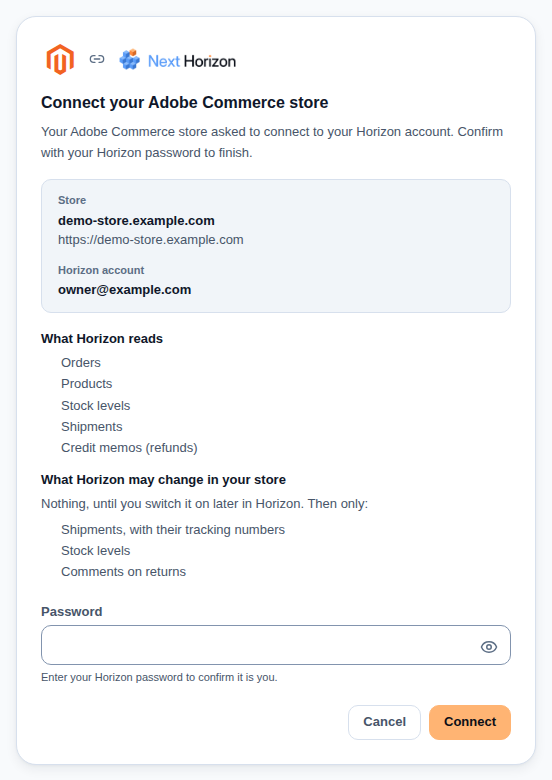
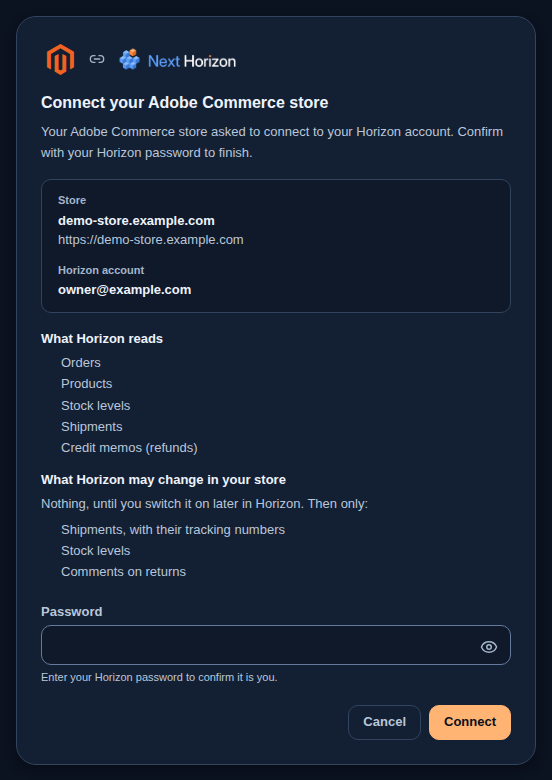
Only the account owner or an admin of the Horizon account can connect a store.
Horizon checks the store address, the credentials and your plan’s store limit before it connects anything. It also detects the edition and whether your store uses multi-source inventory, as for an Integration you create yourself. If a check fails, the window says why and nothing is connected. It also refuses a request that another Horizon account opened first, which only that account can confirm (sign in to it, or wait an hour and choose Activate again), and a request that was not opened from your store admin (choose Activate again from the admin). By default, your store allows 5 minutes between Activate and your confirmation in Horizon: past that, choose Activate again. If your store admin runs on a different web address from your storefront, connect with an Integration you create yourself (below).
Its page in your store admin
The extension adds one settings page: Stores, then Configuration, then Services, then Next Horizon.
- Status is read-only. It says whether the Next Horizon Integration is active, which environment it points to, the two web addresses the Integration uses, and the extension’s version. When the Integration is not active yet, it tells you to choose Activate under System, then Extensions, then Integrations; when your store asks for the Integration to be reauthorized, it tells you to choose Reauthorize there. If it says the addresses do not match the environment yet, choose Save Config.
- Environment stays on Production. Change it only if Horizon support asks you to. Saving the page writes the matching web addresses into the Next Horizon Integration.
The extension’s own texts in your store admin, on this page and in its messages, are in English and in French (France).
Create the Integration in your store
If you do not use the extension, create the Integration yourself. These steps follow Adobe’s guide to Integrations (https://experienceleague.adobe.com/en/docs/commerce-admin/systems/integrations, read 2026-10-02). The screen names were checked against Magento Open Source 2.4.9.
- In your store admin, go to System, then Extensions, then Integrations, and choose Add New Integration.
- On the Integration Info tab, give it a name you will recognise, for example Horizon. The email is optional. Leave Callback URL and Identity link URL empty.
- Enter your own admin password in Your Password.
- Open the API tab. Set Resource Access to Custom and tick the resources in the access list below. Tick the write resources only for the write-backs you plan to use.
- Choose Save. Back on the Integrations page, choose Activate on the Integration’s row, then Allow.
- The store shows four values: Consumer Key, Consumer Secret, Access Token and Access Token Secret. Copy them, then choose Done.
To add a resource later, for example when you switch on a write-back, edit the Integration, tick the resource on the API tab and save. That is enough. Do not choose Reauthorize for this: it issues a new access token and access token secret, and you would then have to connect the store in Horizon again with them.
You can revoke the Integration from the same page at any time. Horizon then stops reading straight away. Disconnect the store in Horizon as well, so that it knows the connection has gone.
Connect it in Horizon
In “Stores”, choose “Connect” on the Adobe Commerce card. “Connect Adobe Commerce” opens.
- “Store URL” is your store’s base address, starting with
https://. - “Store nickname” is optional. It only helps tell several stores apart.
- Under “Authentication method”, keep “OAuth 1.0a” and paste the four values into “Consumer Key”, “Consumer Secret”, “Access Token” and “Access Token Secret”.
- “Edition” can stay on “Auto-detect”. If your store hides its version page, Horizon asks you to choose “Adobe Commerce” or “Magento Open Source” yourself.
“Bearer token” is an alternative that uses the access token alone. It only works if your store allows Integration access tokens as standalone bearer tokens. That setting has been off by default since version 2.4.4, and Adobe does not recommend it. Use “OAuth 1.0a” unless you have a reason not to.
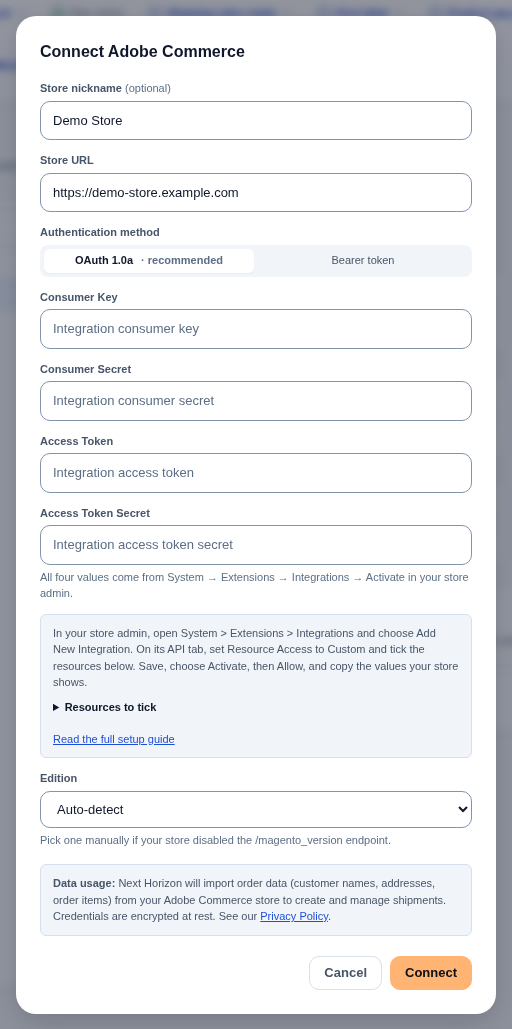
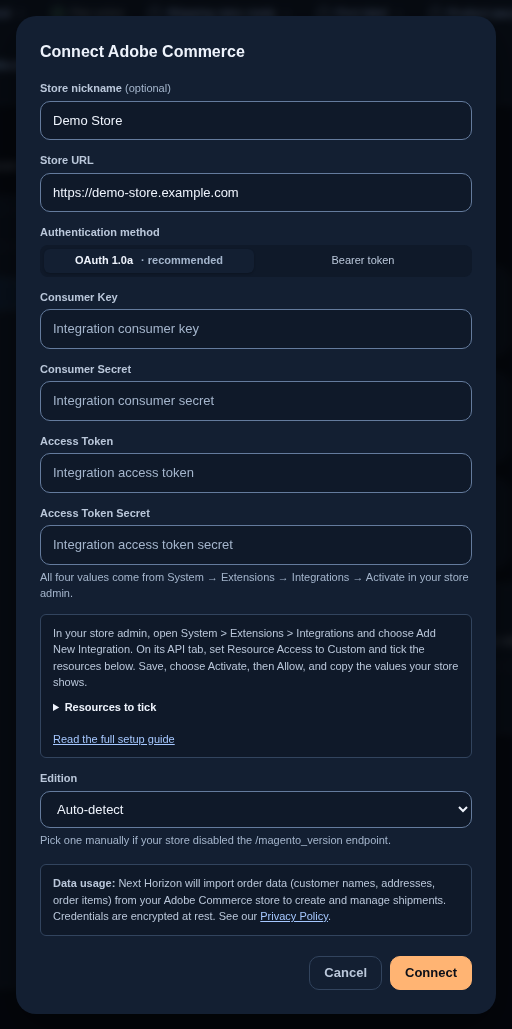
Horizon checks the address and the credentials before it saves anything. It also detects the edition and whether your store uses multi-source inventory. Your credentials are encrypted and never shown again. To change them, connect the same store address again with the new values.
The access the Integration needs
The Integration the extension adds has every resource below except the optional one. If you create the Integration yourself, tick them as described.
Each line is a resource in the Integration’s resource tree. The tree shows the names in the middle column; the last column is the resource’s technical name, which support may ask about. When you tick one, the tree ticks its parents for you.
Every line below was checked on a Magento Open Source 2.4.9 test store. Reading went through an Integration granted exactly the reading list, and that Integration was refused everything else it tried.
For reading (always needed)
| What Horizon reads | Where to tick it | Resource |
|---|---|---|
| Your websites, to check the connection | Stores > Settings > All Stores | Magento_Backend::store |
| Products, and the simple products of a configurable product | Catalog > Inventory > Products | Magento_Catalog::products |
| Inventory sources and the stock held at each | Stores > Inventory > Sources | Magento_InventoryApi::source |
| Stock, on a store without multi-source inventory | Catalog > Inventory | Magento_Catalog::catalog_inventory |
| Orders | Sales > Operations > Orders > Actions > View | Magento_Sales::actions_view |
| Shipments | Sales > Operations > Shipments | Magento_Sales::shipment |
| Credit memos | Sales > Operations > Credit Memos | Magento_Sales::sales_creditmemo |
Recommended if you ship from several sources
| What Horizon reads | Where to tick it | Resource |
|---|---|---|
| Which sources each website sells from, in your store’s priority order | Stores > Inventory > Stocks | Magento_InventoryApi::stock |
An order does not say which source will ship it. With this resource, Horizon counts each order line against one source: the first source of the website’s stock, in your store’s priority order, that holds the product, or the first source if none does. Without it, an order for a product held at several sources is not counted against any one source until the next stock read, and “Adobe Commerce stores” shows “One permission is missing” on a store with two or more sources. Reading and syncing carry on either way.
Ticking Stocks also ticks the four boxes under it. Horizon needs none of them for reading, so you can untick them, except Source Item Assigning if you use the inventory write-back. To add Stocks to an Integration you already use, edit it, tick Stocks on the API tab and save; Horizon picks it up at its next stock read.
Optional
If you link passport fields to product attributes (see Digital product passports), also tick Stores > Attributes > Product (Magento_Catalog::attributes_attributes). Horizon uses it to read the choices of a drop-down attribute. Without it, your store refuses that lookup and the field map asks you to reconnect the store. On the test store, the refusal was checked; a lookup with the resource ticked was not.
For each write-back you switch on
| Write-back | What it does | Where to tick it | Resource |
|---|---|---|---|
| Shipments | create a shipment with tracking on an order | Sales > Operations > Orders > Actions > Ship | Magento_Sales::ship |
| Inventory | set the quantity of a product at a source | Stores > Inventory > Stocks > Source Item Assigning | Magento_InventoryApi::stock_source_item_assign |
| Returns | add a comment to an order | Sales > Operations > Orders > Actions > Comment | Magento_Sales::comment |
Each write was run against the Magento Open Source 2.4.9 test store. The returns write-back never refunds, so it does not need Sales > Operations > Orders > Actions > Credit Memos (Magento_Sales::creditmemo), the resource that allows refunds.
Some resources cover reading and writing at once. For example, Products and Shipments allow changes as well as reads, and ticking Source Item Assigning also ticks Stocks. So your store’s access settings alone cannot make the connection read-only. The write-back switches in Horizon are what keep it from writing, and they are all off until you turn them on.
What Horizon reads
Horizon asks your store for changes on a schedule: orders and shipments every few minutes, products, stock and credit memos a little less often. You can also start a read by hand from “Adobe Commerce stores”, with “Import orders” and “Sync inventory”.
- Products. Simple products, and each simple product of a configurable product, become products in Horizon.
- Stock. With multi-source inventory, each enabled source becomes a location in Horizon, and stock is kept per source. Without it, the store has one location, shown as “Single location”.
- Orders. Your order history is imported once, then new and changed orders keep arriving. Customers are taken from the orders. An order shows as shipped once your store has shipped all of it, and an order of virtual or downloadable products only shows as shipped once it is complete; it never gets a label. A closed order shows as “Refunded”: under “Cancelled or refunded” if it was refunded before anything shipped, and under “Shipped” if goods left first. A cancelled order that had already shipped part of its goods is marked “Partially shipped”. An order on hold in your store waits, and an automation rule buys its label once the hold is lifted, if that happens within two weeks. You can still create the label of an unpaid or held order yourself: Horizon asks you to confirm first.
- Shipments. Shipments made in your store, with their tracking numbers, mark the order lines as shipped. On the first read, Horizon reads your shipments before it reads new or changed orders. An order your store shipped, in whole or in part, before you connected it never changes stock in Horizon, because the stock read from your store already counts those goods as gone; a later shipment on that order still does. If Horizon cannot finish that first read, because your store has more shipments than Horizon reads on a first sync (the store’s row in Horizon gives the number) or refuses to share them (the Integration needs Sales > Operations > Shipments), it tries six times over at least two hours, then imports your orders anyway. Orders placed before you connected that your store reports as shipped are then imported as history and never change stock, and the store’s row in Horizon says why. Horizon keeps trying to read your shipments and files them once it can.
- Credit memos. A refund that restocks a shipped order books a return. A refund before shipping releases the stock. A refund of money only changes no stock. A refund your store made before you connected it never changes stock in Horizon, because the stock read from your store already counts any goods it put back; its amount still shows on the order.
Automation rules run only for orders your store has genuinely just received. Your history import never triggers them.
If you use digital product passports, the passports for shipped units are created from these shipments, as for any other store. See Digital product passports.
Events are optional
On Adobe Commerce, as opposed to Magento Open Source, your store can also send events so that changes arrive sooner. “Set up events” in “Adobe Commerce stores” shows the “Receiver URL” to add in your Adobe Developer Console.
Events are never the source of the data. Horizon reads on its schedule whether events arrive or not, so a store without events is complete, only a few minutes slower. The badge shows “Events ok”, “Events stale” or “Events not set up”.
What Horizon writes, and when
Each store in “Adobe Commerce stores” has three switches under “Write back to Adobe Commerce”: “Mark orders shipped in Adobe Commerce”, “Send stock levels to Adobe Commerce” and “Add return status comment in Adobe Commerce”. All three are off by default, including for stores connected before they existed. Only the account owner or an admin can switch them. Every member of the account sees the account’s Adobe Commerce stores; a viewer can look but not change anything.
None of them writes while the store is paused, needs reconnecting or has been uninstalled.
Shipments
When you buy a carrier label in Horizon for an order imported from this store, Horizon creates one shipment on that order in your store. The shipment carries every tracking number of the label, the label’s own first, then each parcel’s. The carrier title is the carrier’s name. UPS, USPS, FedEx and DHL use your store’s own carrier codes, and any other carrier is entered as a custom carrier. Your store sends no shipment email of its own, so your customer hears from Horizon only.
The shipment covers the whole order. With multi-source inventory, it leaves from the one source that holds every item of the order; Horizon reads your sources first to find it. Horizon does not write when:
- the order is cancelled or closed;
- the order already has a shipment in your store. Horizon never adds a partial shipment;
- no single source holds every item of the order. Horizon never splits a shipment across sources, so the list says “Not written.” and you create that shipment in your store yourself;
- the label has no tracking number.
Each order is written once. A second label for the same order does not change the shipment in your store, and a voided label’s number stays on it. If the answer from your store was lost, Horizon finds its own tracking number on the order the next time and does not create a second shipment. The shipment then comes back in the next read like any other, which is expected.
Inventory
Stock goes one way only, from Horizon to your store. When stock changes in Horizon at a location that stands for one of your store’s inventory sources, Horizon sends the physical quantity for that product at that source: what is on hand there, less only what Horizon itself has set aside there for something other than your Adobe Commerce orders. Your store’s open orders are not subtracted, because your store holds them as reservations and subtracts them itself. In Horizon they are held on a separate location named after the source, ending in “(Adobe Commerce orders)”, and released when the order ships or is cancelled. Which source an order is counted against is described under Recommended if you ship from several sources; when Horizon cannot tell, the location is named after the store instead. The product is marked in stock when that quantity is above zero, and out of stock otherwise, even when the figure is below zero.
- A change that came from your store is never sent back.
- Right after Horizon sends a quantity, it does not read that product and source back from your store for one cycle, so the next read cannot undo it. If the send failed, your store’s figure wins at the next read, and the failure stays in the list.
- Nothing is sent for a store without multi-source inventory, for a product that is not linked to this store, for a kit, or where the store’s channel is marked as the source of truth for stock.
Returns
As the switch’s name says, Horizon does not update a return in your store. It adds one comment to the order’s history (POST /V1/orders/{id}/comments), in your account’s language. The comment names the return, its status and how it is resolved, and for an exchange it gives the replacement reference. It does not change the order’s status. It is not shown to your customer and is not emailed to them.
Adobe Commerce has its own returns (RMA). Horizon neither creates nor changes them, on either edition: the order comment is the only thing it writes for a return.
A return resolved as an exchange or a refund is written when it is approved, received, completed, rejected or cancelled. On a return from this store, the exchange button in the return’s panel, still labelled “Create draft order in Shopify”, writes the exchange note at any stage. It creates no order.
Horizon never refunds, creates a credit memo or issues store credit in your store, and never creates a replacement order there. Those stay with you. The store credit button on such a return is refused with a message that Horizon does not move money in Adobe Commerce yet.
When a write-back fails
A failed write never stops the reading. The store keeps syncing, and the write-back stays switched on.
“Adobe Commerce stores” lists the latest failures for each store under the switches: what was being written (“Shipment”, “Stock” or “Return”), the reason in a sentence, and when. The reasons are:
| What the list says | What to do |
|---|---|
| “Your store refused the update. Check the permissions of the Integration.” | Tick the resource from the access list on the Integration and save. |
| “Not found in Adobe Commerce.” | Nothing, unless the order, product or source should exist. |
| “Adobe Commerce does not allow a shipment for this order.” | Resolve the order in your store, for example take it off hold or invoice it. |
| “Adobe Commerce refused the update.” | Contact support with the order number. |
| “Adobe Commerce answered in a way Horizon could not confirm, so the update is not counted as done.” | Check the order or product in your store, then contact support. |
| “Your store could not be reached. Horizon tried again and then stopped.” | Only if it keeps happening, check your store is up. |
| “Your store had an error. Horizon tried again and then stopped.” | Only if it keeps happening, check your store is up. |
| “Your store asked Horizon to slow down. Horizon tried again and then stopped.” | Only if it keeps happening, check your store’s limits. |
| “The store address was refused.” | Reconnect with your store’s public https:// address. |
| “Not written.” | For a shipment, most often no single source held the whole order: create the shipment in your store. Otherwise contact support. |
If you need a write repeated after fixing the cause, contact support. Staff see the same list.
Disconnecting
Use “Disconnect” in “Adobe Commerce stores”. Imported orders and stock stay in Horizon, and the store stops counting as a connected store. Horizon stops reading from and writing to the store, and the “Write back to Adobe Commerce” switches turn off. Then revoke the Integration in your store admin. If events were set up, remove the webhook from your Adobe Developer Console as well.
To reconnect later, connect the same store address again. Horizon picks up where it stopped: orders, locations and stock are not imported a second time, and the events address stays the same. Turn the write-back switches on again if you want them. Orders placed while the store was disconnected are imported then, but do not trigger automation rules, since you may have shipped them another way meanwhile. Reconnecting takes a store slot on your plan again.
Your Horizon plan sets how many stores you can connect. Horizon tells you before connecting when that limit is reached.
Support
Support: write to tech@horizonlogistics.eu, answered within one business day.